

If you have a few thousand products, you probably already know your catalog has problems.
The hard part is knowing where they are.
2000+ products and 6000+ images is far too much to look through manually, so I’m sure you never get around to starting the audit, and more products keep getting added on top of it.
You don’t need to review every product to make progress. You need twenty minutes, a sample of your catalog, and an order to work through. This post covers that order, what to skip on a first pass, and what to stop doing by hand.
What a catalog audit covers
A catalog audit is a check of your product data: images, alt text, variants, attributes, duplicates, and anything that’s published but shouldn’t be.
It’s a different job from an SEO audit, which looks at your pages and how search engines rank them. A catalog audit looks at the data those pages are built from, which also feeds your on-site filtering, your ad feeds, and your AI channels. The two overlap on images and alt text but are otherwise separate.
Why product data matters more than it used to
Messy product data used to be a cosmetic problem. Mismatched photos and half-filled attributes looked unprofessional on your collection page, and that was mostly the end of it, because the shopper was already on your site and could see the product for themselves.
In the past, poor product data was primarily a visual issue. Inconsistent photos and incomplete attributes looked unpolished on a collection page, but the impact was limited because shoppers had already arrived on your site and could inspect the items directly.
Today, your product information reaches far beyond your website. Through Shopify Catalog, details such as titles, descriptions, images, pricing, options, and stock levels are gathered and shared with AI platforms and agents to power searches, product comparisons, and recommendations.
Shopify’s own figure is that “data syndicated by Shopify drives 2x more conversion in AI chats,” and its Q1 2026 commerce data puts AI-referred orders up nearly 13x year over year, with AI-referred visitors converting at nearly 50% higher rates than organic search. All figures here are Shopify’s and current as of September 2026.
It’s worth being clear about what isn’t known. Shopify states that being included in Shopify Catalog “doesn’t guarantee that a product will appear in a specific AI answer, be ranked in a specific position, or be displayed by every channel.” There’s no published spec, no image requirements, and no completeness score to measure yourself against. Anyone telling you they know the ranking factors is guessing.
What you can control is whether the data you’re sending is complete and consistent, which is what the checks below cover.
How to choose which products to check
Reviewing 2,000 products in twenty minutes isn’t possible, so work from a sample.
Pull two lists before you start. First, your top fifty products by revenue over the last twelve months. Second, twenty products chosen at random from everything else.
Your top fifty tell you what to fix this week, because that’s where your sales already are. The random twenty tell you how bad the rest of the catalog is, which is what decides whether you need a cleanup or a system.
The six checks, in priority order
These are ranked by how much damage each problem causes against how long it takes to find. If you run out of time at check three, you’ve still covered the worst of it.
1. Products with no image (two minutes)
Set your product list to 250 per page and look down the thumbnail column for the gray placeholder icon.
A product with no photo can’t be shown anywhere, on your own site or in any channel your data feeds. There are usually only a handful of these, so fix them before you move on to anything else.
2. Your top twenty photos side by side (five minutes)
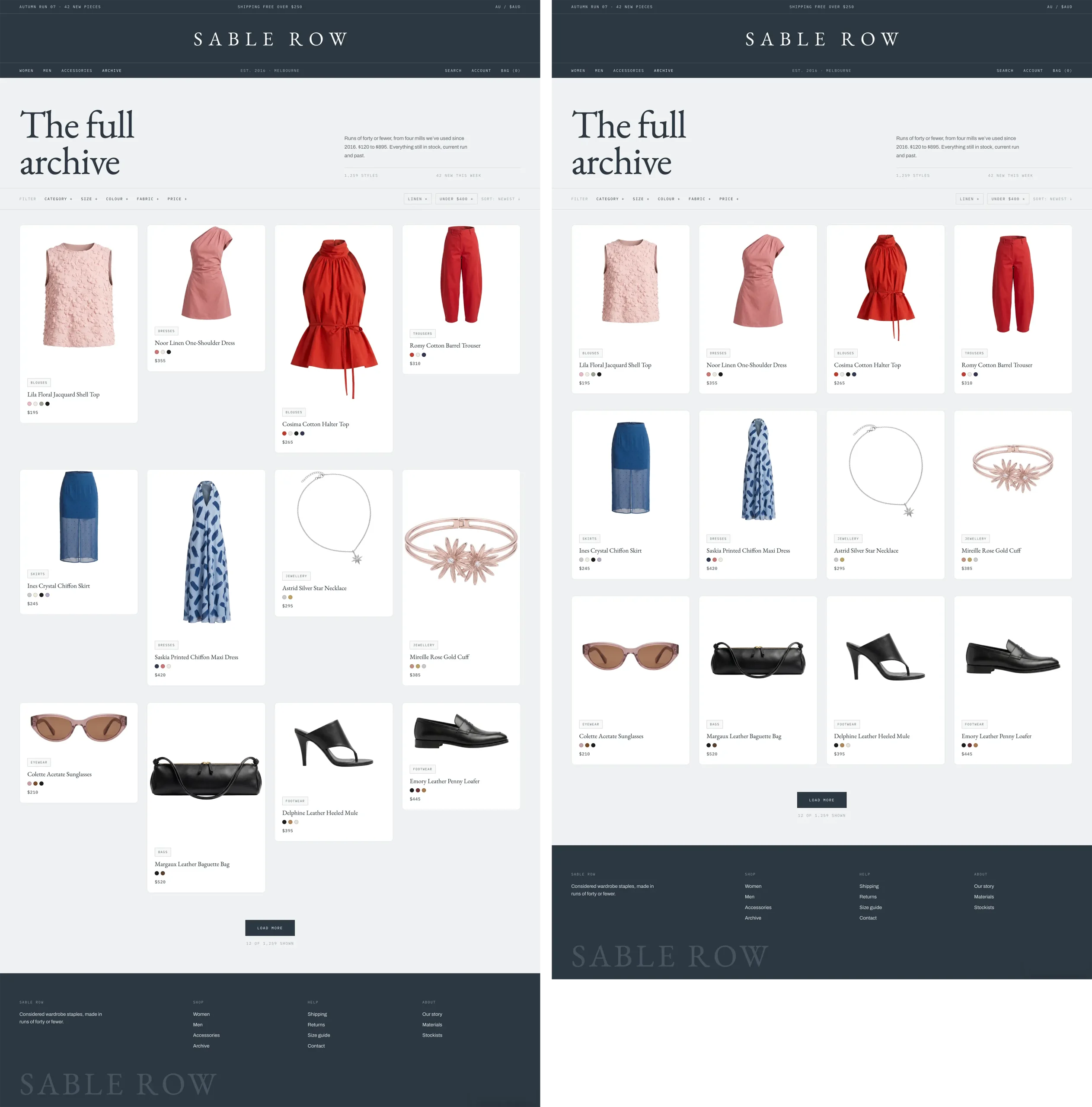
Take the hero image from your twenty best sellers and put them next to each other at the same small size, cropped square. A folder in icon view works well enough.
What you’re looking for is inconsistency, not quality. Backgrounds that shift between pure white, warm white, and a lifestyle scene. Products that fill the frame in one photo and sit small in the middle of another. Different aspect ratios, so some products lose their edges when they get squared off. Lighting that runs cool in one shot and yellow in the next.
Your collection page hides all of this, because the images are spread across scrolling rows and your eye adjusts. A comparison set doesn’t. When an agent runs an image search or pulls a batch of products to compare, your product appears at thumbnail size next to a competitor’s, in a layout you didn’t build and can’t preview. Consistency is what holds up in that context.
3. Image dimensions and file sizes (three minutes)
Check the actual dimensions of the main images on those same twenty products. Mixed aspect ratios are the main thing to catch, because they cause the cropping you just found.
Then look at file sizes. Anything much over 200KB is slowing your product pages down without looking any better.
4. Missing alt text (two minutes)
Open five products from your random twenty and check whether the alt text field has anything in it. If three of the five are empty, assume the rest of the catalog is too.
Alt text is what tells anything that can’t see an image what the image shows, which now covers considerably more than screen readers and Google. There’s a full guide to fixing missing alt text across a catalog here when you get to it.
5. Variant and option names (four minutes)
Open five products that come in multiple colors or sizes and compare how the options are written. “Navy,” “Navy Blue,” and “navy” are three separate filter values on your store and three separate attributes to anything else reading your data.
While you’re in there, check that each variant has its own image, its own price, and real inventory numbers.
Inconsistent option names are easy to miss and expensive to leave. They break filtering on your own site, so a shopper who filters for navy sees four of your eleven navy products and leaves without telling you why.
6. Duplicates, orphans, and products nobody can buy (four minutes)
Sort your full catalog by product title and look for near-identical names sitting next to each other, which is where duplicates hide.
Then filter for products that aren’t in any collection, and for anything out of stock with no restock date. Each one of those is a live page and a live catalog entry for something a customer can’t actually order.
What to deliberately ignore for now
Certain tasks can easily consume all your time if you allow them to.
Rewriting product descriptions is the most tempting item on the list and can be the slowest. For a catalog this size it’s a quarter’s work, so note it and keep going.
Renaming image files isn’t worth it either. Shopify won’t let you rename an image after upload, so changing one means deleting and re-uploading it, which breaks any existing links to that file. Set a naming rule for new products and leave the old ones alone.
Metafields and taxonomy can wait for a second pass. Detailed categorization does help machines place your products, but it’s a structured project you scope once you know the state of the basics.
The long tail can wait too. Your worst data is almost certainly on products nobody buys, which makes it information rather than a priority.
How to prioritize what you found
Your list will fall into three groups, and each one needs a different response.
Some of it is small enough to fix immediately: missing images on live products, a few duplicates, a handful of option names spelled three ways. While you have the list open, they are worth fixing now.
Some of it needs to be scoped as a project with someone’s time attached, like re-photographing a collection so the framing matches, restructuring how variants are named, or writing descriptions. These can take longer than an afternoon.
The rest shouldn’t be manual work: Resizing images, filling alt text, and keeping formats consistent as new products arrive are all jobs that come back, because your product catalog is ever evolving.
What to automate so it doesn’t come back
Merchants who run one cleanup and stop tend to end up back where they started. We see this all the time.
Clean up once and stop, and you end up right back where you started. The stores that leave automatic optimization running are the ones that stay clean, because the catalog never gets a chance to slip.
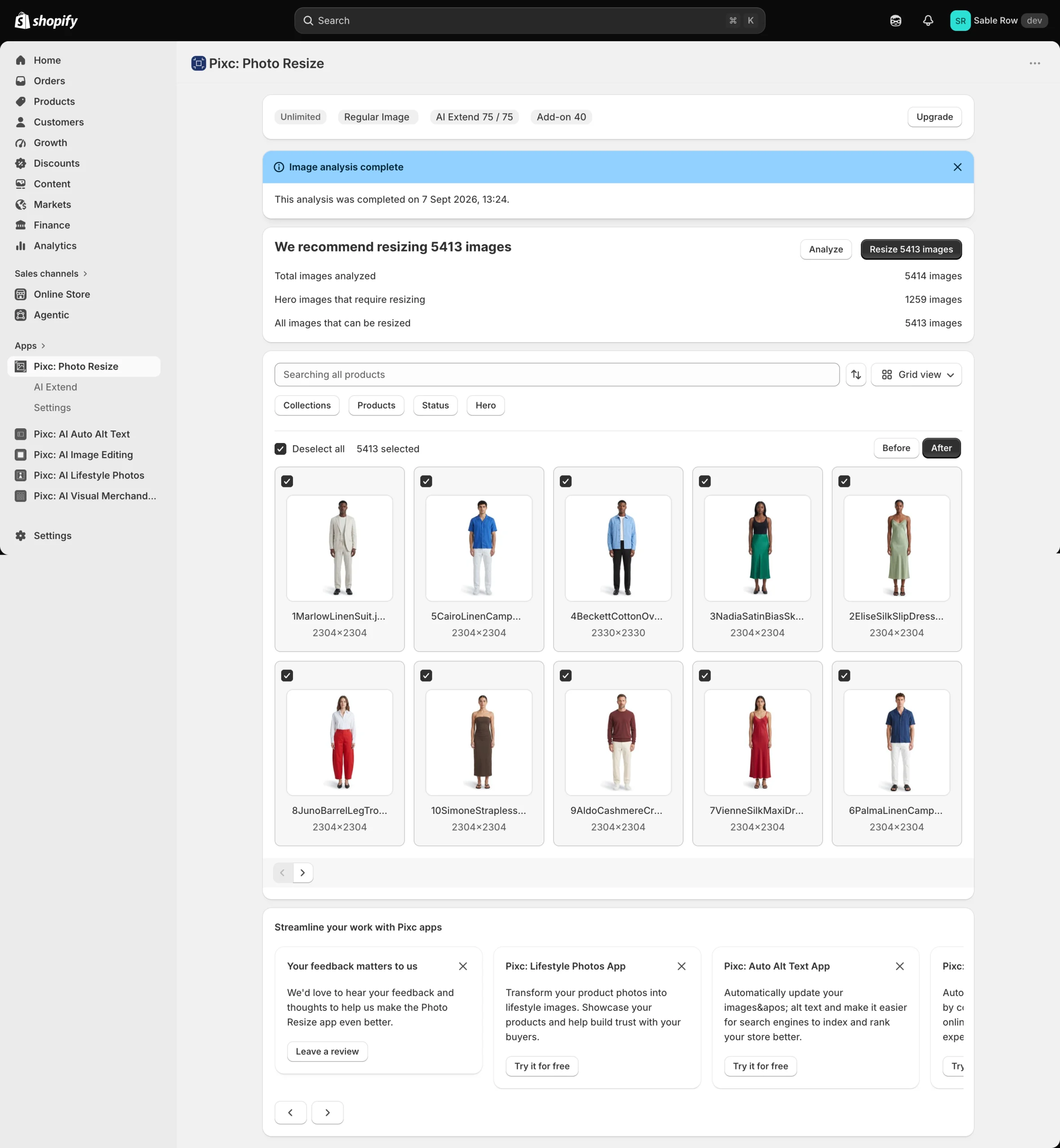
Photo Resize handles the image side of this. It resizes and standardizes images across your whole catalog at once, so the consistency problem from the second check gets fixed everywhere rather than twenty products at a time, and it keeps doing it for each new product and images you upload. If alt text was your bigger gap, AI Auto Alt Text works the same way, and it audits what’s missing first so you can see the scale of it before committing to anything.
Both have free plans that cover the audit itself.
Questions we get about catalog audits
How often should you re-run a catalog audit?
Quarterly suits most stores if you are adding products regularly, and the twenty-minute version is something you can do regularly. Also run it after anything that adds a lot of products at once, like a migration, a new supplier feed, or a big import. That’s when things break in bulk instead of one product at a time.
If you’ve already automated the repeat jobs, checking once or twice a year is plenty.
Does Shopify have a built-in catalog audit tool?
No, not as a single feature. You can get the product list filters, the thumbnail view, and CSV export, which between them cover every check in this post, but there’s no completeness score or report telling you what’s missing. Shopify’s published guidance for Catalog is only to keep product information “clear, complete, and up to date,” so there’s no benchmark to check yourself against.
How is a catalog audit different from an SEO audit?
An SEO audit looks at your pages and how search engines crawl and rank them, so meta descriptions, site speed, keywords, and internal links. A catalog audit looks at the product data itself. If it’s the first one you need, there’s a full ecommerce SEO audit checklist here.
What if the audit says everything is broken?
Start smaller rather than bigger. Fix the top fifty products by revenue, automate the checks that will come back, and leave the long tail until those two are done. A catalog turning over hundreds of products a year doesn’t reward a one-time pass, and starting with the whole thing is the reason most of these audits never get finished.
What to start on this week
You don’t need to know the state of all 2,000+ products. Fifty that make you money and twenty that stand in for the rest is enough to turn a vague sense that the catalog is messy into a list someone can actually work from.
Fix what’s small, scope what’s big, and automate what will come back. This will help you turn a one-off cleanup into a repeatable system that you can keep coming back to.
If image consistency is what you found, you can install Photo Resize here and start on the free plan to see how much of your catalog is out of line.